Showing posts with label files. Show all posts

Thursday, March 17, 2016

Copy Files with Pause and Resume Feature in Windows


You can copy files from one location to another with Pause feature that is now you can pause your copy paste and resume at your will. What’s more is that you can also increase the speed of the copy paste. Isn’t it cool?

Copy Resume Feature in Windows
Total Copy is a great tool that enables you to copy paste files which can be paused and resume in between along with the increased copy speed.

Features:
  • Pause / Resuming: At any time you may pause the copy-process, and continue later.
  • Auto-pause on any error : If you run out of disk space, the
    network
    goes down or some other error occur, copying is automatically paused, and you may resume when the error is sorted out.
  • Resuming on power failure: If the computer is turned off during the copy process (ex. power-loss or system-crash), Total Copy let’s you resume when you restart.
  • Speed limit : Slows down the copy process, and frees resources to other tasks
  • Faster than Windows : Copies slightly faster than Windows (approx. 10% locally, and 1% on network)
  • Small improvements: Shows copy-speed, a percent-bar and Kbytes remaining.
  • Does not modify Windows’ own copy-function : This program will not alter the existing windows-copy-function
How to use:
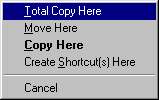
Just drag the files using the right mouse button; you will get a menu like the one shown and select “Total Copy here” instead of Windows “Copy here”.
Copy Resume Feature in Windows
Download
Read More..

Thursday, September 18, 2014

Installing Adobe Macromedia FlashMX to Run Open SWF Files

Neither Adobe Flash Player nor Adobe Shockwave Player will play SWF files that are in files on your computer. It will be necessary to install a program that will do this. Flash MX is an Adobe program that will do this.

INSTALLING ADOBE FLASH MX

Go to:

http://www.freewebs.com/freemacromediaflashmx/

Choose a link and download "flash_keygen.zip"
You will find the Flash MX exe file and the registration serial in the folder that will be installed when you double click this zip file.
...

Right click on an SWF file in your folder that holds them, such as "Pictures" or "My Pictures".
Go to "Open with".
Left click "Choose Default Program..."
Click on "Browse" ensuring that "Always use the selected program to open this kind of file" box is ticked.
Go to the "Macromedia" folder, then "Flash MX" folder" and click on the "Flash.exe" file.

Your computer is now set to open all SWF files with Macromedia Flash MX.
...

Go to the folder that has your SWF files. Double click an SWF flash picture icon that is in your open window. The file will be opened and played by Flash MX. Click "Use default" in the "missing Font Warning" window if necessary.

or

Open the Macromedia Shockwave Flash MX Program.
Go to "File", "Open", then double-click on an SWF picture file in the folder window that opens. Maybe you will have to browse there. You will see the SWF file in action
.


REMOVING PROTECTION ON SWF FILES
If the SWF is protected (Flash MX will tell you). Download this program:

http://www.dcomsoft.com/download/swf_protect_remover.exe

Then run the program. Select the protected SWF file. Unprotect it and save it as a new file.

Installing Adobe Macromedia Shockwave Player for Mozilla Firefox
Installing Adobe Macromedia Shockwave Player for Internet Explorer
Installing Macromedia Adobe Flash Player for Internet Explorer
Installing Macromedia Adobe Flash Player for Mozilla Firefox
Installing a Program to Run SWF Files
Disabling UAC for a Program

★
Read More..

Thursday, July 17, 2014

Installing Macromedia Adobe FlashMX to Run Open SWF Files

Neither Adobe Flash Player nor Adobe Shockwave Player will play SWF files that are in files on your computer. It will be necessary to install a program that will do this. Flash MX is an Adobe program that will do this.

INSTALLING ADOBE FLASH MX

Go to:

http://www.freewebs.com/freemacromediaflashmx/

Choose a link and download "flash_keygen.zip"
You will find the Flash MX exe file and the registration serial in the folder that will be installed when you double click this zip file.
...

Right click on an SWF file in your folder that holds them, such as "Pictures" or "My Pictures".
Go to "Open with".
Left click "Choose Default Program..."
Click on "Browse" ensuring that "Always use the selected program to open this kind of file" box is ticked.
Go to the "Macromedia" folder, then "Flash MX" folder" and click on the "Flash.exe" file.

Your computer is now set to open all SWF files with Macromedia Flash MX.
...

Go to the folder that has your SWF files. Double click an SWF flash picture icon that is in your open window. The file will be opened and played by Flash MX. Click "Use default" in the "missing Font Warning" window if necessary.

or

Open the Macromedia Shockwave Flash MX Program.
Go to "File", "Open", then double-click on an SWF picture file in the folder window that opens. Maybe you will have to browse there. You will see the SWF file in action
.


REMOVING PROTECTION ON SWF FILES
If the SWF is protected (Flash MX will tell you). Download this program:

http://www.dcomsoft.com/download/swf_protect_remover.exe

Then run the program, select the protected SWF file. Unprotect it and save it as a new file.

Installing Adobe Macromedia Shockwave Player for Mozilla Firefox
Installing Adobe Macromedia Shockwave Player for Internet Explorer
Installing Macromedia Adobe Flash Player for Internet Explorer
Installing Macromedia Adobe Flash Player for Mozilla Firefox
Installing a Program to Run SWF Files
Disabling UAC for a Program

★
Read More..

Thursday, April 17, 2014

Upload Microsoft Office Files to Zoho Office


Microsoft Office 2007

Zoho has just released a Microsoft Office Add-on that will probably tilt the war with Google Office more in Zohos favor.

Edit userr documents and spreadsheets both online and offline using Zoho Plug-in for Microsoft Office.


The new Zoho plugin greatly simplifies the online-offline workflow. You can create a new document in Microsoft Word locally and directly save it from the Word program to the web [Zoho Writer]

Alternatively, user can get an existing document from Zoho Office, edit it offline with Microsoft Word and publish it again to the web.

Though Microsoft Word edits the Zoho file as an HTML document, the formatting and lausert were well preserved when we published our Word 2007 document in Zoho Writer.

Effectively, user get best of both the worlds - the speed and flexibility of editing inside a desktop program that user are so much used to plus the sharing and collabarative environment offered by an online service.

Zoho Office Plugin is also compatible with yet-to-be-released Microsoft Excel 2007 and Word 2007 programs. Download Zoho Microsoft Office plugin here.
Read More..
 
Copyright 2009 Information Blog
Powered By Blogger