Showing posts with label windows. Show all posts

Saturday, October 15, 2016

HD Windows Logo Wallpaper for Desktop

To save the image, first click to enlarge the image, then right-click on it and click on Save Image As.. or simply right-click on the thumbnail and click on Save Link AS..
Note: all are high resolution images greater than 1024 x 728 px.


Orange windows logo hd wallpaper
Black Shiny Windows HD Logo WallpapeTransparent windows Logo Wallpaper


Windows7 Logo Wallpaper
Windows Vista Aura WallpaperWindows Logo


Windows Logo Wallpaper
Golden Windows Logo WallapaperDark Windows Logo Wallpaper
Read More..

Friday, October 7, 2016

How to allow users to Run only specified programs in Windows 7


You can allow users to run only specified programs in Windows 7 operating systems. It is up to you if you want your shared computer to allow users to run only specified programs in Windows 7. A shared computer in an office, for example, can be set in the same way if the company does not want the employees to run all types of programs. You can allow the users to run only specified programs in Windows 7 by using the Local Group Policy. However, you cannot do this in the Home editions of Windows 7 as it does not provide the Local Group Policy Editor.
Click on the Start button.

Type “gpedit.msc” in the search box of the Start menu and press the Enter button on the keyboard.
Local Group Policy Editor will open. Scroll down to “User Configuration”, “Administrative Templates” and then “System” on the left hand side of the window pane.
On the right hand side of the window, under “Setting”, navigate and double-click on “Run only specified Windows applications”.


Select Enabled from the window.
Click on “Show” under Options. 


The Show Contents window pane will appear. Here you can type the applications you want to let the users run.
After you are done, click on the OK button.
Close the Local Group Policy Editor.


After this, if someone attempts to run an app which was not specified by you, he will get this error message:


This feature to allow users to run only specified programs in Windows 7 is the best at preventing the users from accessing applications you don’t want them to use on a particular computer.

Read More..

Tuesday, September 27, 2016

Windows 7 Hidden Theme

Computer Tips
 computer theme

windows 7- as soon as the user knows that windows 7- This is the default theme that already.Under the theme of Windows 7 - the custom wallpaper, sounds, icons, task-bar, etc. are arranged. A certain number of the theme you want to use any of the themes that are downloaded from the Internet. But you know your being aware of the location of the five theme categories are concealing your Windows PC! Yes, absolutely the truth. Now just a little  pain in my Windows 7 PC in 5minutes time. From the start  in the search bar: Windows Globalization MCT write.Now press  Enter. Then open a new window.“ll see five folders in a new window.Now that MCT-AU folder into the folder Theme - waited in AU. Theme-click Windows 7 - The theme will be installed in Australia. Similarly, one by one, MCT-CA, MCT-GB, MCT-US, MCT
-ZA folders respectively entered into the Theme folder CA. theme, GB. Theme, US. Theme and ZA.Theme folders click will install the remaining four themes on your PC. This theme is the theme of four in Canada, the United Kingdom, the United States and South Africa.
 
Read More..

Thursday, August 11, 2016

A Project on Windows NT


Some of the important points are listed below:

  • Boot Loader Phase
  • Kernel loading phase
  • Session Manager
  • Winlogon
  • Releases
  • Major features
  • Architecture of Windows NT
  • Hardware requirements

This article is shared by one of the reader: SAHADEV KADLAG
Download the file here:

  • WINDOWS_NateWare.zip - The pptx file
  • windows_NToriginal&final.zip - A Documentation on the project
Read More..

Saturday, June 4, 2016

How to Turn On or Enable Hibernation in Windows 7

Note Windows 7 doesnt support Hibernate on System with Ram of 4GB or more.

To Turn On or Enable Hibernation.
  1. Click on Start.
  2. Type cmd. Now instead of pressing Enter, press Ctrl+Shift+Enter to run cmd with administrator rights.
  3. or Browse to C:WindowsSystem32
  4. Right Click on cmd.exe and select Run as Administrator
  5. Type powercfg /hibernate on and hit enter.
  6. Now go to Control Panel >> System and Security >> Power Options.
  7. Click on Change plan settings link of the active power plan.
  8. Click on Change advanced power settings link.
  9. Expand the Sleep tree.
  10. In the drop down box of Allow Hybrid Sleep, select Off as new setting to disable and turn off Hybrid Sleep.

To Turn off or Disable Hibernate.
  1. Click on Start.
  2. Type cmd. Now instead of pressing Enter, press Ctrl+Shift+Enter to run cmd with administrator rights.
  3. or Browse to C:WindowsSystem32
  4. Right Click on cmd.exe and select Run as Administrator
  5. Type powercfg /hibernate off and hit enter.

Now, to Set the power button option as Hibernate,

  • Click on Start.
  • Right-Click on the Power Button.

Enable Hibernate in Windows 7
  • Click on Properties.
  • Drop-down the Power Button Action Box.

Enable Hibernate in Windows 7
  • Select Hibernate.
  • Click on Apply and then Click on OK.
Read More..

Tuesday, May 10, 2016

How to Create delete a Hard Disk Partition in Windows 7

How to Create/delete a Hard Disk Partition in Windows 7


Hello Everyone, Do you want to Create/delete a Hard Disk Partition in Windows 7 then check this video.

Read More..

Thursday, April 28, 2016

Use Tabs in Windows Explorer like in mozilla Firefox

Tabs have made the way of surfing the Internet a lot easier. Using tabs in the browsers have eased up the trouble faced when switching between all the windows opened. Tabs are really the need of today that prevents from cluttering the desktop with lots of windows.

Using Tabs in the internet browsers like Firefox, Opera, IE7 and Chrome etc have made me feel the need of tabs in the Windows Explorer as well and I think there are many others like me who can’t live without tabbed browsing in the explorer.

Here is a way with which we can add tabs to the Windows Explorer, for example we can create one tab that contains all Windows Explorer folders, one for Internet and one for some other application.

Method 1:
QT TabBar

tabs for Windows Explorer
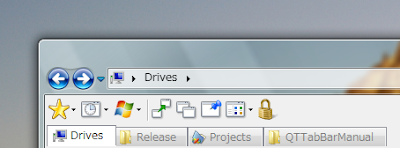
QTTabBar is an Add-In that gives Tab Browsing Feature to your Explorer. Just download and run this tool, and after that the computer needs to be restarted and you need to activate the toolbar in the View -> Toolbars menu.
Now every time you click on a new folder, it will be opened in a new tab. isn’t it cool?
Download QT TabBar

Method 2:
Window Tabifier

tabs for Windows Explorer
This program allows us to host several open Windows in one parent window so that you can easily access and navigate between them, as well as clean up space in the taskbar. This will allow us to group similar Windows together, easily navigate between them and clean up space in the taskbar.
Download Window Tabifier
Read More..

Sunday, April 24, 2016

Tweak Windows Vista and Windows7 using Ultimate Windows Tweaker

Tweak Windows Vista and Windows7 using Ultimate Windows Tweaker
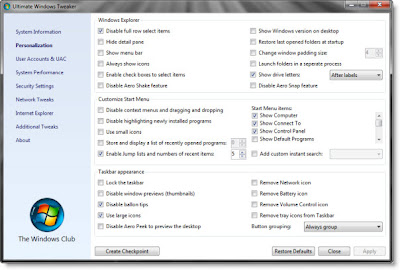
Ultimate Windows Tweaker is a free tweak utility available for tweaking and optimizing Windows 7 and Windows Vista (32 bit & 64 bit). This utility makes your system faster and more stable. Same utility for windows7 as well as windows Vista. It auto-detects the operating system and functions accordingly.

It doesnt requires install just run the setup and it unpacks over 150 tweaks and settings. Just download the zip file, extract it and run the setup.

Please create a system restore point before using this utility for safety.

Download Utility here
Read More..

Thursday, March 24, 2016

Fix Bugs in Windows Media Player using Fix WMP Utility

Windows Media Player is a default media player in windows and is used by most of the windows users. Its look and feel are good so even i prefer using WMP. But over a period of time, some bugs are created. A great utility is available to fix these bugs. "Fix WMP Utility v 1.0"

Its a free utility developed by The Windows Club. It re-registers all the concerned Windows Media dll files required for the smooth functioning of Windows Media Player.If you experience any problem or you get error messages while playing any audio or video in WMP you can run this utility to fix the issues. It re-registers over 40 dlls required for smooth functioning of Windows Media Player.

Please create a System Restore point before using this utility for safety. However this utility is tested and works fine in Windows Vista and Windows 7 and should work for

all versions of Windows and Windows Media Player.

Below are some screenshots of the software:


Download Fix WMP Utility v 1.0 here
Read More..

Thursday, March 17, 2016

Copy Files with Pause and Resume Feature in Windows


You can copy files from one location to another with Pause feature that is now you can pause your copy paste and resume at your will. What’s more is that you can also increase the speed of the copy paste. Isn’t it cool?

Copy Resume Feature in Windows
Total Copy is a great tool that enables you to copy paste files which can be paused and resume in between along with the increased copy speed.

Features:
  • Pause / Resuming: At any time you may pause the copy-process, and continue later.
  • Auto-pause on any error : If you run out of disk space, the
    network
    goes down or some other error occur, copying is automatically paused, and you may resume when the error is sorted out.
  • Resuming on power failure: If the computer is turned off during the copy process (ex. power-loss or system-crash), Total Copy let’s you resume when you restart.
  • Speed limit : Slows down the copy process, and frees resources to other tasks
  • Faster than Windows : Copies slightly faster than Windows (approx. 10% locally, and 1% on network)
  • Small improvements: Shows copy-speed, a percent-bar and Kbytes remaining.
  • Does not modify Windows’ own copy-function : This program will not alter the existing windows-copy-function
How to use:
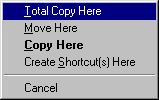
Just drag the files using the right mouse button; you will get a menu like the one shown and select “Total Copy here” instead of Windows “Copy here”.

Copy Resume Feature in Windows
Download
Read More..

Tuesday, March 8, 2016

how to recover your windows password

buddy i am going to show you how to recover your windows password.

1st step=connect a pendrive/memory card on computer.

2nd step=follow my image instruction


                                                   go to my computer
                                               

                             click on open control panel
                                                

                                                           clck on user account

                                       click on crate a password reset disk

                                           here is put your current password
                                                       

wait until finished progres


click finish
 
how to use this tricks and break windows password

 1st step= restart your computer

2nd step= for test put a wrong password

3rd step=connect your memory card or pendrive where you install recovery file

4th step= put you wrong password  and enter.windows says wrong password ..and you can see reset password option.


5th step=after clickin reset option if you are connect your memory card/pendrive then open a new window.

6th step=click next and enter a new password then finish


  if you can understand then you can watch this video

Read More..

Monday, February 29, 2016

Taskbar Thumbnail Preview mechanism for Windows XP

Preview mechanism for Windows XP
Windows 7 has thumbnail preview feature. Taskbar Thumbnail Preview displays small thumbnail preview of opened window on your taskbar when you hover your mouse on taskbar icons. Many users have started loving taskbar thumbnail preview of windows 7.

We can access this feature in Windows XP but with the Alt+Tab combination. There is a small application available from Microsoft for this. This PowerToy enhances the existing Alt + Tab application switching mechanism of Windows XP. It provides a thumbnail preview of windows in the task list and is compliant with the new Windows XP visual style. You use this just as you do the existing Alt + Tab mechanism. Press and hold the Alt key and then press the Tab key to cycle through the running applications. When the desired application is highlighted release the Alt key. You can move backwards through the task list by pressing and holding the Shift and Alt key and then pressing the Tab key.
  • Download the application (534 KB)
Read More..

Tuesday, February 16, 2016

How to Remove Arrows on Shortcuts in Windows Vista

Remove Arrows on Shortcuts in Windows
Each of icons created in Windows Vista has a shortcut number associated with it, which is 29. In order to remove the arrow from the shortcut, we will redirect number 29 to a different master icon file through simple registry hack:
  • Click on Start button, then type regedit in the search bar, then hit enter key.
  • Navigate to HKEY_LOCAL_MACHINESOFTWAREMicrosoftWindowsCurrentVersionexplorer.
  • Right click on Explorer, choose New -> Key, and name the new key as Shell Icons.
  • Right click on Shell Icons, choose New -> String Value, then name it as 29.
  • On the right panel, double click on 29 and assign it with the value as %SystemRoot%noarrow.ico,0.
  • Download noarrow.ico, save it to root directory, C:Windows.
  • In order to make it effective of the registry changes, logoff from the computer and login again.
Once above steps are done, you will notice that all shortcuts created previously or any newly created shortcuts no longer have arrow attached to it.
Read More..

Friday, February 5, 2016

How to enable Press Ctrl Alt Del Secure Logon On Windows 7 or Vista

HP 2009M 20-Inch HD LCD Monitor
Method 1: User Accounts Advanced Settings

  1. Click start and type netplwiz into Start Search box, it opens the User accounts dialogbox.
  2. Go to Advanced Tab.
  3. Under “Secure logon” section, select and check the checkbox for Require users to press Ctrl+Alt+Delete option
  4. Click apply and OK.
Method 2: Registry editing.
  1. Click start and type netplwiz into Start Search box, it opens Registry editor.
  2. Navigate to the following registry key:HKEY_LOCAL_MACHINESoftwareMicrosoftWindowsCurrentVersionPoliciesSystem
  3. In the right pane, double click on DisableCAD registry key value, and set its value data to 0

Method 3: Using Group policy.
  1. Click on Start button, and type secpol.msc into Start Search box, and hit Enter to open the Local Security Policy Editor.
  2. Navigate to Security Settings >> Local Policies >> Security Options.
  3. In the right pane, double click on Interactive logon: Do not require CTRL+ALT+DEL.
  4. Select and set the radio button of Disabled.
  5. Click Apply and OK.
Read More..

Sunday, January 31, 2016

Remove Windows shutdown button

Remove shutdown buttons your friend pc

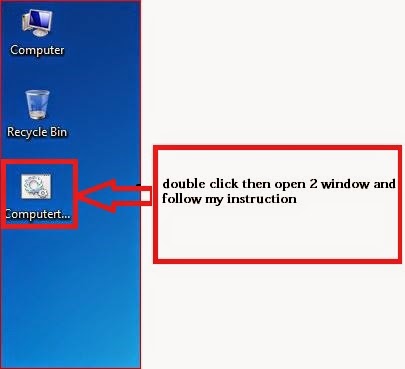
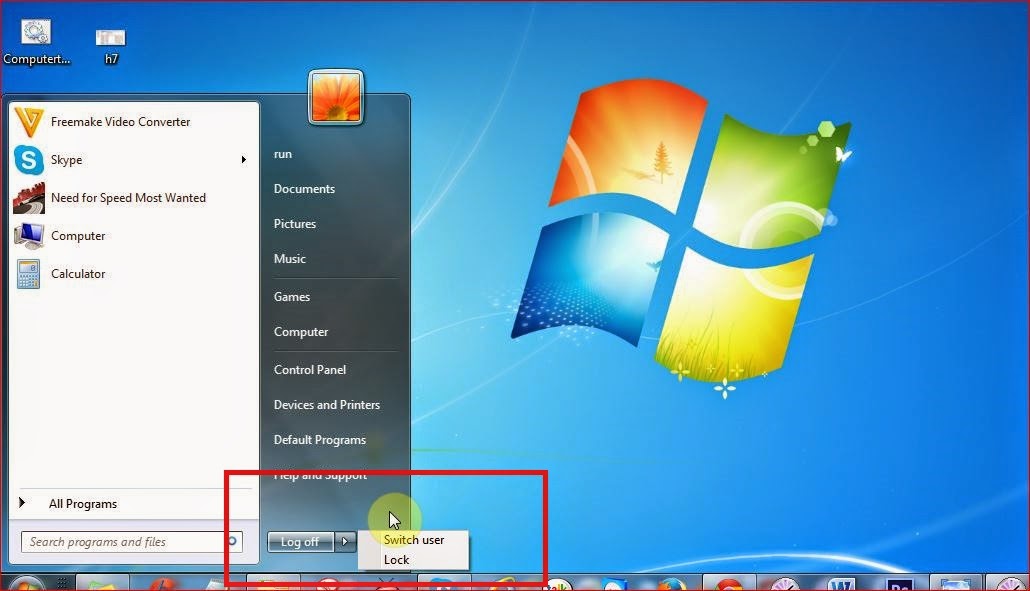
How to remove shutdown button from your friends computer. If your friends have windows 7 operating system then you are applying this tricks. So, follow my image instruction...

4 

click here and download this file


#Follow my image instruction:
3


2

#OK Done now check your shutdown button..........
1

Read More..

Monday, July 14, 2014

How to Updating from Windows 7 RC to Windows 7 RTM

Over 8 million people tested Windows 7 when it was in development and you are still running the Windows 7 Release Candidate which will got expire in March 2010. You might have been running the RC in a production setup because of how reliable and fine the software is, especially for a pre-release product.

Instructions

Things Youll Need:

  • windows7,windows 7 RC, windows 7 RTM, windows7 upgrade
  1. Step 1

    Over 8 million people tested Windows 7 when it was in development and you are still running the Windows 7 Release Candidate which will got expire in March 2010. You might have been running the RC in a production setup because of how reliable and fine the software is, especially for a pre-release product.

  2. Step 2

    The first thing you should understand as a tester of pre-release software, means its pre-release and Microsoft is in no way responsible for anything that can happen running the software in a production environment. Yes, the software is very fine, especially since the first beta released back in January, but there are a few things users must know before using it and what happens when the software is going to expire. Here is a little of information from Microsoft about the Windows 7 Upgrade path policies.

  3. Step 3

    Upgrades to Windows 7, some operating system are not supported due to low configuration of system. For Windows 7 Upgrade, the following operating systems are not supported:

    Windows 95, Windows 98, Windows Millennium Edition, Windows XP, Windows Vista® RTM, Windows Vista Starter, Windows 7 M3, Windows 7 Beta, Windows 7 RC, or Windows 7 IDS, Windows NT® Server 4.0, Windows 2000 Server. Windows Server® 2003, Windows Server 2008, or Windows Server 2008 R2, Cross-architecture in-place upgrades are not supported. Cross-language in-place upgrades are not supported. Cross-SKU upgrades (for example, Windows 7 N to Windows 7 K) are not supported. Upgrades from Windows Vista to Windows N, Windows K, Windows KN, or Windows E are not supported. Cross-build type in-place upgrades are not supported.

  4. Step 4

    In another development, Microsofts business depends on running millions of programs that stretch back decades, supporting many numbers of peripherals, and giving a platform for thousands of competing manufacturers who make everything from handhelds and tablet PCs to many data-centre mainframes. But with luck you will not see too many of these lies, and on the surface, Windows 7 is impressively fine. Windows 7 is a long way from being perfect, and its not an essential migration if youre happy with XP. But nor is there a real reason to avoid it. Windows 7 is simply the best edition of Windows you can get.

  5. Step 5

    This one gets all the press, but its really more a product of Aero Peek than anything clever in and of itself. Basically it takes some ideas from the Mac OS X dock like larger icons and application launcher duties place whether the application is open or not, a melding of Windows old Quick Launch Bar into the taskbar proper, and adds in traditional Windows taskbar activity like the viewing of open windows. The default performance is fine, which keeps everything stacked in its respective icon, but the real money is in the combine when taskbar is full view, which can be accessed from the taskbar properties. This brings the profits of verbose item names, that always a big win for Windows over Mac OSs icons-only approach. So, Windows 7 is a better operating system than any other operating systems from the Windows.

Read More..
 
Copyright 2009 Information Blog
Powered By Blogger