Vista provides a great handy way to increase the size of Desktop icons instantly. If we open a word file or simply a web page to zoom the page we press the ctrl key and scroll the mouse. Same way click on Vista desktop and scroll the mouse upwards to increase the size of icons and scroll downwards to decrease.
Read More..
Showing posts with label vista. Show all posts
Showing posts with label vista. Show all posts
Thursday, May 5, 2016

Sunday, April 24, 2016
Tweak Windows Vista and Windows7 using Ultimate Windows Tweaker
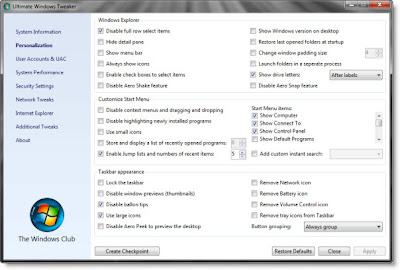
Ultimate Windows Tweaker is a free tweak utility available for tweaking and optimizing Windows 7 and Windows Vista (32 bit & 64 bit). This utility makes your system faster and more stable. Same utility for windows7 as well as windows Vista. It auto-detects the operating system and functions accordingly.
It doesnt requires install just run the setup and it unpacks over 150 tweaks and settings. Just download the zip file, extract it and run the setup.
Please create a system restore point before using this utility for safety.
Download Utility here
Tuesday, February 16, 2016
How to Remove Arrows on Shortcuts in Windows Vista

Each of icons created in Windows Vista has a shortcut number associated with it, which is 29. In order to remove the arrow from the shortcut, we will redirect number 29 to a different master icon file through simple registry hack:
- Click on Start button, then type regedit in the search bar, then hit enter key.
- Navigate to HKEY_LOCAL_MACHINESOFTWAREMicrosoftWindowsCurrentVersionexplorer.
- Right click on Explorer, choose New -> Key, and name the new key as Shell Icons.
- Right click on Shell Icons, choose New -> String Value, then name it as 29.
- On the right panel, double click on 29 and assign it with the value as %SystemRoot%noarrow.ico,0.
- Download noarrow.ico, save it to root directory, C:Windows.
- In order to make it effective of the registry changes, logoff from the computer and login again.
Friday, February 5, 2016
How to enable Press Ctrl Alt Del Secure Logon On Windows 7 or Vista

 Method 1: User Accounts Advanced Settings
- Click start and type netplwiz into Start Search box, it opens the User accounts dialogbox.
- Go to Advanced Tab.
- Under “Secure logon” section, select and check the checkbox for Require users to press Ctrl+Alt+Delete option
- Click apply and OK.
- Click start and type netplwiz into Start Search box, it opens Registry editor.
- Navigate to the following registry key:HKEY_LOCAL_MACHINESoftwareMicrosoftWindowsCurrentVersionPoliciesSystem
- In the right pane, double click on DisableCAD registry key value, and set its value data to 0
Method 3: Using Group policy.
- Click on Start button, and type secpol.msc into Start Search box, and hit Enter to open the Local Security Policy Editor.
- Navigate to Security Settings >> Local Policies >> Security Options.
- In the right pane, double click on Interactive logon: Do not require CTRL+ALT+DEL.
- Select and set the radio button of Disabled.
- Click Apply and OK.
Subscribe to:
Posts (Atom)


