Showing posts with label using. Show all posts

Wednesday, October 26, 2016

Running omxplayer from the command line easily using alias

Although I have previously written about running omxplayer via GUI, sometimes I like to control it via command line.
However, since I have my raspberry pi hooked up via HDMI and I like the show to be fullscreened, this requires typing:
omxplayer -r -o hdmi FILE
each time.
In order to make this easier we can use aliases. An alias lets you run a command with a shorter command. For instance:
ll is really an alias of ls - l

You can see what aliases you have by typing alias in the command line.
To temporarily add an alias you can use the command:
alias play=omxplayer -r -o hdmi

However, I want to permanently add this. To do that, Ill edit /home/pi/.bash_aliases
you can do this using vim or nano. Simply add the line alias play=omxplayer -r -o hdmi to this file.

Make sure you log out and log back in for this change to be made. Now we can just type: 

play FILE

To be able to easily find and intelligently play videos automatically, see this page:
http://stevenhickson.blogspot.com/2013/03/playing-videos-intelligently-with.html

Consider donating to further my tinkering.


Places you can find me
Read More..

Thursday, October 6, 2016

Classifying everything using your RPi Camera Deep Learning with the Pi

For those who dont want to read, the code can be found on my github with a readme:
https://github.com/StevenHickson/RPi_CaffeQuery
You can also read about it on my Hackaday io page here.

What is object classification?

Object classification has been a very popular topic the past couple years. Given an image, we want a computer to be able to tell us what that image is showing. The newest trend has been using convolutional neural networks in order to classify networks trained with a large amount of data.

One of the bigger frameworks for this is the Caffe framework. For more on this see the Caffe home page.
You can test out there web demo here. It isnt great at people but it is very good at cats, dogs, objects, and activities.


Why is this useful?

There are all kinds of autonomous tasks you can do with the RPi camera. Perhaps you want to know if your dog is in your living room, so the Pi can take his/her picture or tell him/her they are a good dog. Perhaps you want your RPi to recognize whether there is fruit in your fruit drawer so it can order you more when it is empty. The possibilities are endless.

How do convolutional neural networks work (a VERY simple overview)?

Convolutional neural networks are based loosely off how the human brain works. They are built of layers of many neurons that are "activated" by certain inputs. The input layer is connected in a network through a series of interconnected neurons in hidden layers like so:
[1]

Each neuron sends its signal to any other neuron it is connected to which is then multiplied by the connection weight and run through a sigmoid function. The training of the network is done by changing the weights in order to minimize the error function based on a set of inputs with a known set of outputs using back propagation.

How do we get this on the Pi?

Well I went ahead and compiled Caffe on the RPi. Unfortunately since it doesnt have code to optimize the network with its GPU, the classification takes ~20-25s per image, which is far too much.
Note: I did find a different optimized CNN network for the RPi by Pete Warden here. It looks great but it still takes about 3 seconds per image, which still doesnt seem fast  enough. 

You will also need the Raspberry Pi camera which you can get from here:
Raspberry PI 5MP Camera Board Module

A better option: Using the web demo with python

So we can take advantage of the Caffe web demo and use that to reduce the processing time even further. With this method, the image classification takes ~1.5s, which is usable for a system.

How does the code work?

We make a symbolic link from /dev/shm/images/ to our /var/www for apache and forward our router port 5050 to the Pi port 80. 
Then we use raspistill to take an image and save it to memory as /dev/shm/images/test.jpg. Since this is symlinked in /var/www, we should be able to see it at http://YOUR-EXTERNAL-IP:5005/images/test.jpg.
Then we use grab to qull up the Caffe demo framework with our image and get the classification results. This is done in queryCNN.py which gets the results.

What does the output look like?

Given a picture of some of my Pi components, I get this, which is pretty accurate:

Where can I get the code?

https://github.com/StevenHickson/RPi_CaffeQuery

[1] http://white.stanford.edu/teach/index.php/An_Introduction_to_Convolutional_Neural_Networks

Consider donating to further my tinkering since I do all this and help people out for free.


Places you can find me
Read More..

Wednesday, September 14, 2016

The Internet Is Failing The Website Preservation Test

I blogged a few months back about the increasing problem of dead links (known as link rot) on research web sites. Not surprisingly this problem is not isolated to academic websites. An article by Rob Miller in TechChrunch, called "The Internet Is Failing The Website Preservation Test," makes the case for a a digital Library of Congress to preserve and protect all of the content on the internet to counter this growing problem. Preserving the integrity of the web for posterity cannot he (and others) argue be left to content publishers or non-profits like the Internet Archives Wayback Machine or the British Librarys UK Web Archive. The web is such a vital information source to us all know it must be preserved for future historians.

from The Universal Machine http://universal-machine.blogspot.com/

IFTTT

Put the internet to work for you.

Delete or edit this Recipe

Read More..

Monday, September 5, 2016

Manually make fast your Pc without using any third party software computer tips

Manually make fast your Pc without using any third party software :)computer tips


You can easily make your PC fast  following natural way. Watch my video tutorial.


Read More..

Sunday, September 4, 2016

How to remove New Folder exe Virus manually or using software

New Folder.exe Virus
New Folder.exe virus mostly spread through the USB drive. It cannot be deleted normally. Here are the steps to remove this virus easily
  1. Find out all the locations of the “newfolder.exe” virus.
  2. Open the task manager and end the newfolder.exe process running in background.
  3. Open cmd and then type “dir /a XXX” where XXX is the name of the folder where the virus is.
  4. Then type “cd XXX”.
  5. Delete the file by typing “del name_of_file”.
  6. Then remove the whole folder by typing “rmdir /s XXX”.
  7. The virus has been removed just see the task manager once again and end the newfolder.exe process running in the background (if any).
  8. Restart the system.
There is also a software utility available for this purpose. Click to download
Run this software in safe mode to remove the virus easily.
Read More..

Monday, August 29, 2016

Using the Google Voice C API

First of all, this obviously isnt an official Google API. I wrote it because I wanted one in C++ and couldnt find one that worked.

That being said, the code is on github here (in the TextCommand folder) and is available under GPLv3 for anyone to use.
I know this could (maybe even should) have its own github project but since I use it for my home automation projects, its included in the PiAUISuite. That being said, the current gvapi binary is also compiled for the Pi. So you will need to run make gvapi if you want to use it on any other linux machine.

To include the C++ code in your own project, you just need to include gvoice.h in your file and then you should be able to access the GoogleVoice class. An excellent example to look at is gvapi.cpp since it shows how to interact with it. You should need only to call Init and Login, then you should be able to do any of the Google voice functions.

If you only to use gtextcommand to send commands to your pi, see here. If you want to send or check SMS without having to include the source in your code/project, just use the gvapi program. It can get contacts, send, receive, and delete SMS. It also comes in with built in spoof protection (this is included in GoogleVoice::CheckSMS).

Heres a quick video demo as an example of the kinds of things you can do with gvapi


Using the gvapi program is fairly simple and its man page is below:


gvapi


gvapi - Use of Google voice API in order to send and receive SMS  

SYNOPSIS

gvapi [OPTIONS]...  

DESCRIPTION

gvapi was compiled for use with home automation on the Raspberry Pi but will work on any linux system with an internet connection. It uses curl and boost regex in order to login and stores the cookie in /dev/shm. It only logs in once every 24 hours to save time. It supports a multitude of different options and parameters. For help/comments/questions, feel free to e-mail me at help@stevenhickson.com. I answer sporadically but do eventually respond.
 

OPTIONS

-?
Same as -h
-c
Checks your incoming text messages to see if you have anything unread. It will mark it whatever it outputs as read unless you also use the -r flag. If you include a number with the -n flag, you can specify it to only check messages received from that number. You can also use the -k flag to specify that the message must start with a certain keyword.
-d
Sets debug mode on. You can also specify debug mode from 1 - 3, where 3 is the most verbose.
Ex: gvapi -c -d2
-h
Asks for some quick general use help for gvapi.
-i
Outputs the contacts of your google voice account in the form name==number
-k KEYWORD
Sets a keyword that has to be in the beginning of the text message for it to be returned. This is useful as a password for parsing only certain messages.
-m MESSAGE
Sends the message you specify. This should be in quotes if it contains special characters or a space. The number also has to be specified otherwise it wont have a message to send
Ex: gvapi -n +15551234 -m Hello
-n NUMBER
Can be used with the -c flag to check messages from a certain number or the -m flag to send a message. Can be in a format without the country code, with just the country code, or with a plus sign and the country code. If the formost, it interprets it as a US number.
Ex: gvapi -n 5551234 -c
-p PASSWORD
Can be used with the -u flag to log in manually. If not specified, the program uses the default username and password specified in ~/.gv
-r
Receives and deletes SMS messges. Can be used with the -c flag or without. It is the same as the -c flag but instead of just marking the messages as read. It deletes them.
-u USERNAME
Can be used with the -p flag to log in manually. See the -p flag for more details. Cannot be used without the -p flag.
-v
Outputs version and creater information

AUTHOR

Steven Hickson (help@stevenhickson.com)  

BUGS

No known bugs. To report bugs, send a clear description to help@stevenhickson.comSince this program is fairly crude, user typos could cause crashes/failed responses. Please read the man page thoroughly before submitting a bug.  

COPYRIGHT

Copyright © 2013 Steven Hickson. License GPLv3+: GNU GPL version 3 or later <http://gnu.org/licenses/gpl.html>. This is free software: you are free to change and redistribute it as long as you give credit to the author and include this license. There is NO WARRANTY, to the extent permitted by law.  

HISTORY

This is the second major version of this program  

SEE ALSO

http://stevenhickson.blogspot.com/

Consider donating to further my tinkering.


Places you can find me
Read More..

Wednesday, August 24, 2016

Using Kinect with Unity 3D Game Engine

How to use the Kinect (Microsoft Drivers v. 1.5) with Unity 3D

Here is my current result for fun (The beginning is my own C++ version that doesnt involve unity) in a game where you can throw fireballs:


After spending a while developing a little C++ library to use with the Microsoft Kinect Drivers (which Ive been meaning to release), I decided to try to integrate the Kinect functionality into the popular Unity 3D Game Development software.

I was pretty excited after finding the handy CMU package here. However, it only worked with the beta Microsoft SDK and didnt have some of the more advanced functionality that I needed. Im running version 1.5 hacked together a quick DLL and modified some code.

I use the Microsoft Kinect SDK Version 1.5 which I have available for download here.

The DLL source code can be found here in case you want to modify it for a different version.

The DLL itself (needed for the Kinect to work with Unity) can be found here and should be placed in your Microsoft SDK/Kinect folder like below:
C:Program FilesMicrosoft SDKsKinectv1.5AssembliesUnity

The scripts to control a player and receive information from the Kinect can be found here.

They are used the same way as the CMU ones but are slightly modified with a bit more error checking and some extra flags. All you have to do is follow the same instructions on the CMU page linked above which just involves enabling the Kinect and telling the KinectModelControllerV2 where your joints are. The movement flag is still in beta as Im trying to make it so the character can walk around.

I have a version that is entirely in C++ using OpenGL, FreeGlut, my own version of Blepo, and my own development libraries that is previewed in the beginning of the video that can be found here. It is what I do most of my testing in before I port it over to Unity.

Enjoy!

Consider donating to further my tinkering.


Places you can find me
Read More..

Tuesday, July 12, 2016

Tate Britain Is Offering Everyone Remote Tours Using Robots

One of my favourite art galleries recently offered remote tours of its exhibitions by robot after hours. Wired reports that "Since at least the 1960s, weve romanticized night time visits to art museums. In From the Mixed-Up Files of Mrs. Basil E. Frankweiler, published in 1967, the Metropolitan Museum of Art is a 12-year-old runaways chosen hideout destination." I really wish Id been able to take a tour and I hope other museums take up this idea. In the meantime this video will have to suffice.


from The Universal Machine http://universal-machine.blogspot.com/

IFTTT

Put the internet to work for you.

Turn off or edit this Recipe

Read More..

Sunday, June 19, 2016

Using Youtube on the Raspberry Pi without XBMC or gnash

There is an update to this here.

You can install this by pulling the source from git and running the InstallAUISuite.sh file.
Commands to install are below (your user should have sudo priveledges but you dont need to sudo or be root to run the commands unless shown otherwise):

sudo apt-get install git-core
git clone git://github.com/StevenHickson/PiAUISuite.git
cd PiAUISuite/Install/
./InstallAUISuite.sh

Update Instructions 

cd PiAUISuite
git pull
cd Install
sudo ./UpdateAUISuite.sh


Demonstration:


So this is a quick video to demonstrate youtube working fast and easily on the Raspberry Pi without the use of XBMC or gnash.
I tried out gnash first which didnt work at all.
So then I tried out XBMC and although it is pretty, it is awfully slow so I decided to get youtube to work on my own.
The basis of this is really simple. There is a nifty program out there called youtube-dl that can get the media file from the website and download it. Its great because it does it fast and works for many other websites like the daily show and the colbert report.
So what I did was basically write a little script that analyzes your input and then gets the proper information from the youtube-dl program without downloading the video, then it sends this http stream to omxplayer to play.
It can handle playlists or individual files from multiple websites as well as a bunch of other things.

After that, I started implementing a nice little search feature using C++ and Curl.
Im starting to implement a GUI which will essentially look like youtube kind of. Until then I have this nifty search tool, which was essentially my start to the GUI I am currently creating.

If youve ever used XBMCs youtube, you will notice that this is a lot faster, and in my opinion, easier to use and more natural. Plus it only requires a tiny file on your system as opposed to XBMCs massive footprint.

The nice part of having an easy command line program like this is that it can be incorporated into a lot of other things easily. For instance, I have incorporated it into my voicecommand script as shown in the video.

The source code can be found here. To install see the top.

Sources:
This post for using axel with the youtube-dl.
This page for the youtube-dl source and documentation.

 Consider donating to further my tinkering


Places you can find me
Read More..

Wednesday, June 8, 2016

POP mp3 is downloaded when using facebook chat

POP.mp3 is downloaded when using facebook chat
This is nothing but the new message sound. It is not a virus or bug.
To disable it, just Click on options and Un-check "Play sound for new messages"
Thats it, now enjoy chatting.
Read More..

Wednesday, May 4, 2016

Beyond Touch using everyday tools as input devices

This Thursdays Gibbons lecture titled Beyond Touch: using everyday tools as input devices is by Dr Beryl Plimmer of the Department of Computer Science at The University of Auckland. The lecture is this Thursday the 7th at 6:00pm for a 6:30pm start. Click the lecture link for full venue details and if you cant attend the lecture will be streamed live and after the event.

from The Universal Machine http://universal-machine.blogspot.com/

IFTTT

Put the internet to work for you.

Delete or edit this Recipe

Read More..

Sunday, April 24, 2016

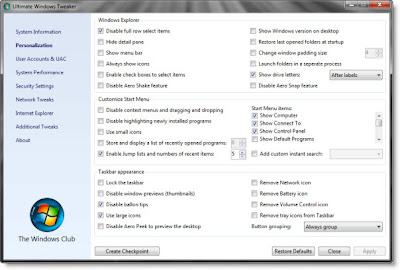
Tweak Windows Vista and Windows7 using Ultimate Windows Tweaker

Tweak Windows Vista and Windows7 using Ultimate Windows Tweaker
Ultimate Windows Tweaker is a free tweak utility available for tweaking and optimizing Windows 7 and Windows Vista (32 bit & 64 bit). This utility makes your system faster and more stable. Same utility for windows7 as well as windows Vista. It auto-detects the operating system and functions accordingly.

It doesnt requires install just run the setup and it unpacks over 150 tweaks and settings. Just download the zip file, extract it and run the setup.

Please create a system restore point before using this utility for safety.

Download Utility here
Read More..

Thursday, March 24, 2016

Fix Bugs in Windows Media Player using Fix WMP Utility

Windows Media Player is a default media player in windows and is used by most of the windows users. Its look and feel are good so even i prefer using WMP. But over a period of time, some bugs are created. A great utility is available to fix these bugs. "Fix WMP Utility v 1.0"

Its a free utility developed by The Windows Club. It re-registers all the concerned Windows Media dll files required for the smooth functioning of Windows Media Player.If you experience any problem or you get error messages while playing any audio or video in WMP you can run this utility to fix the issues. It re-registers over 40 dlls required for smooth functioning of Windows Media Player.

Please create a System Restore point before using this utility for safety. However this utility is tested and works fine in Windows Vista and Windows 7 and should work for

all versions of Windows and Windows Media Player.

Below are some screenshots of the software:


Download Fix WMP Utility v 1.0 here
Read More..

Thursday, March 10, 2016

The World Parks Congress Using technology to protect our natural environment


(Cross posted on the Official Google Australia Blog)

This week, thousands of people from more than 160 countries will gather in Sydney for the once-in-a-decade IUCN World Parks Congress to discuss the governance and management of protected areas. The Google Earth Outreach and Google Earth Engine teams will be at the event to showcase exemplars of how technology can help protect our environment.

Here are a few of the workshops and events happening in Sydney this week:

  • Monday, November 10th - Tuesday, November 11th: Over the last couple of days, the Google Earth Outreach and Earth Engine teams delivered a 2-day hands-on workshop to develop the technical capacity of park managers, researchers, and communities. At this workshop, participants were introduced to Google mapping tools to help them with their conservation programs. 
  • November 13 - 19: Google will be at the Oceans Pavilion inside the World Parks Congress to demonstrate how Trekker, Street View and Open Data Kit on Android mobile devices can assist with parks monitoring and management. 
  • Friday, November 14, 9:30-10:30am: Join a Live Sydney Seahorse Hunt in Sydney Harbour, via Google Hangout, with Catlin Seaview Survey and Sydney Institute of Marine Science. Richard Vevers, Director of the Catlin Seaview Survey, will venture underwater to his favorite dive site and talk with experts about the unique marine life (including seahorses!) that explorers can expect to find around Sydney. Tune in here at 10:30am to catch all the action. 
  • Saturday, November 15th, 8:30am: Networking for nature: the future is cool. Hear about how technology-driven ocean initiatives can help us better understand and strengthen our connection with our natural environments. WPCA-Marine’s plenary session will includes presentations by Sylvia Earle and Mission Blue, Catlin Seaview Survey, Google, Oceana, and SkyTruth. The session will also feature leading young marine professionals Mariasole Bianco and Rebecca Koss. 
  • Saturday, November 15th, 12:15pm: We’ll be hosting a panel discussion on using Global Forest Watch to monitor protected areas in near-real-time. Global Forest Watch is a dynamic online alert system to help park rangers monitor and preserve vast stretches of parkland.
  • Saturday, November 15th, 1:30 - 3:00pm: At the Biodiversity Pavilion join Walter Jetz from Yale and Dave Thau from Google for a presentation on Google Earth Engine and The Map of Life. The presentation will showcase how Google Earth Engine is being used in a variety of conservations efforts - including monitoring water resources, the health of the worlds forests, and measuring the impact of protected areas on biodiversity preservation. We will also announce a new global resource from The Map of Life for mapping and monitoring biodiverse ecosystems. 

We believe that technology can help address some of our world’s most pressing environmental challenges and we look forward to working with Australian conservationists to integrate technology into their work.

You can find us at the Oceans Pavilion inside the World Parks Congress, where we will be joined by our environmental partners including The Jane Goodall Institute, The World Resources Institute and The Map of Life.

We hope to see you at one of our events this week!
Read More..

Wednesday, February 17, 2016

Using a webcam with the Raspberry Pi

There is a lot of recent motivation to do image processing and computer vision tasks on the Raspberry Pi.
Luckily OpenCv is already built on Raspbian and Wheezy.

To install it, all you have to do is use apt-get like below:
sudo apt-get install libcv-dev libopencv-dev libcv2.3 opencv-doc

You may also want to install python opencv
sudo apt-get install python-opencv

To see all available opencv packages, type:
sudo apt-cache search opencv

You can test your opencv installation and webcam by downloading and running the script below:
http://stevenhickson-code.googlecode.com/svn/trunk/AUI/Imaging/test

You may have to make this program executable by running:
chmod +x test

The source code and makefile can be found here:
http://stevenhickson-code.googlecode.com/svn/trunk/AUI/Imaging/

If everything works, you should get a result like the one below (Apologies for the terrible quality, its a really old webcam):

  
I used scrot to take the screenshot
sudo apt-get install scrot

Thanks to Ethan Miklancic for hiding behind my laptop in the picture. I recommend using C or C++ rather than python because it makes a HUGE difference in speed.


Good Luck! 

Consider donating to further my tinkering.


Places you can find me
Read More..

Monday, September 22, 2014

A C PROGRAM TO PRINT HELLO WORLD WITHOUT USING SEMICOLON

using if

main()
{
if(printf("Hello World")){
}}


using switch


main()
{
switch(printf("Hello World")){
}}


using while


main()
{
while(!printf("Hello World")){
}}


                                            TRY THIS

Read More..
 
Copyright 2009 Information Blog
Powered By Blogger